• Jump to Header
  • Jump to Main Content
  • Jump to Footer
Michigan State University
Technology at MSU
  • Training
  • MSU Tech Store

Technology at MSU

  • About
    • About MSU IT
    • Mission, Vision, and Values
    • MSU IT Organization
    • MSU IT Leadership
    • Guidelines and Policies
    • Institutional Data Policy
    • Secure IT
    • Federated IT
    • MSU IT Projects
    • Office of the CIO
  • |
  • Services
    • Service Catalog
    • Request a Service
    • Business & Productivity Services
    • Consultation Services
    • Work & Workstation Services
    • Hardware & Software
    • Spartan 365
    • Zoom & Conferencing
    • Application Development
    • Network Services
    • Server, Data, and Storage Support
    • Cloud Services
    • Web Services
    • AI Services
    • Data & Analytics
    • Technology in Classrooms
    • Google Workspace
    • Teaching & Learning Services
    • High Performance Computing
    • Research Technology & Collaboration
  • |
  • Help and Support
    • Get Help / Contact IT
    • Report an Issue
    • Service Status
    • Getting Online
    • Classroom Support
    • Workstation / Desktop Support
    • Digital Accessibility Support
    • Visitor & Guest Support
    • IT Partners & Service Providers
    • Knowledge Base / Documentation
    • Training
    • Orientation
    • FAQs
  • |
  • Students
    • New Students
    • Getting Online
    • Email / Spartan Mail
    • D2L
    • Printing
    • Computer Labs
    • MSU Mobile App
    • Help & Support
    • Security Tips
    • Password Help
    • MSU Tech Store
  • |
  • Faculty and Staff
    • Faculty
    • Staff
    • Orientation
    • Workstation Support
    • IT Staff Resources
    • Training
    • Collaboration Tools
    • Remote Work Tools
    • Staff Technology Tools
    • Storage & File Sharing
    • Software & Licensing
    • Teaching Tools
    • Research Technology Support
    • Lab / Classroom Scheduling
    • Web Technology Tools
    • Security Resources
  • |
  • SecureIT
    • Multi-Factor Authentication
    • Research Security
    • Safeguard Your Devices
    • Phishing
    • Passwords
    • File Sharing & Copyright
    • Handling Data
    • Securing Data
    • Data & Hardware Disposal
    • Employee Guide
    • Admin & Supervisor Guide
    • IT Security Checklists
    • Security Incident
    • Website Security Standards
    • Cybersecurity Awareness Training
    • MSU Information Security Program Plan
    • Single Sign-On & Self-Service Password Reset
  • |
  • News
Get IT Help
Technology at MSU
  • About
  • Services
  • Help and Support
  • Students
  • Faculty and Staff
  • SecureIT
  • News

< About

  • About MSU IT
  • Mission, Vision, and Values
  • MSU IT Organization
  • MSU IT Leadership
  • Guidelines and Policies
  • Institutional Data Policy
  • Secure IT
  • Federated IT
  • MSU IT Projects
  • Office of the CIO

< Services

  • Service Catalog
  • Request a Service
  • Business & Productivity Services
  • Consultation Services
  • Work & Workstation Services
  • Hardware & Software
  • Spartan 365
  • Zoom & Conferencing
  • Application Development
  • Network Services
  • Server, Data, and Storage Support
  • Cloud Services
  • Web Services
  • AI Services
  • Data & Analytics
  • Technology in Classrooms
  • Google Workspace
  • Teaching & Learning Services
  • High Performance Computing
  • Research Technology & Collaboration

< Help and Support

  • Get Help / Contact IT
  • Report an Issue
  • Service Status
  • Getting Online
  • Classroom Support
  • Workstation / Desktop Support
  • Digital Accessibility Support
  • Visitor & Guest Support
  • IT Partners & Service Providers
  • Knowledge Base / Documentation
  • Training
  • Orientation
  • FAQs

< Students

  • New Students
  • Getting Online
  • Email / Spartan Mail
  • D2L
  • Printing
  • Computer Labs
  • MSU Mobile App
  • Help & Support
  • Security Tips
  • Password Help
  • MSU Tech Store

< Faculty and Staff

  • Faculty
  • Staff
  • Orientation
  • Workstation Support
  • IT Staff Resources
  • Training
  • Collaboration Tools
  • Remote Work Tools
  • Staff Technology Tools
  • Storage & File Sharing
  • Software & Licensing
  • Teaching Tools
  • Research Technology Support
  • Lab / Classroom Scheduling
  • Web Technology Tools
  • Security Resources

< SecureIT

  • Multi-Factor Authentication
  • Research Security
  • Safeguard Your Devices
  • Phishing
  • Passwords
  • File Sharing & Copyright
  • Handling Data
  • Securing Data
  • Data & Hardware Disposal
  • Employee Guide
  • Admin & Supervisor Guide
  • IT Security Checklists
  • Security Incident
  • Website Security Standards
  • Cybersecurity Awareness Training
  • MSU Information Security Program Plan
  • Single Sign-On & Self-Service Password Reset

< News

  • Training
  • MSU Tech Store
Get IT Help

Register Your Multi-Factor Credential

Technology at MSU > SecureIT > Multi-Factor Authentication >

Register Your Multi-Factor Credential

MFA adds an extra layer of protection to your information by sending a security code to your phone before you can log in to view financial data. Follow the steps below to register one or more MFA credentials.

If you do not have access to a mobile phone that is capable of receiving calls or texts or downloading the Okta Verify app (in step 3), please contact the MSU Tech Store for further instructions at (517) 432-0700, techstore@msu.edu, or visit 110 Computer Center (450 Auditorium Road, East Lansing, MI, 48824).

  1. To set up MFA, visit auth.msu.edu and log in using your email address and password. After you log in, you should see the screen below:
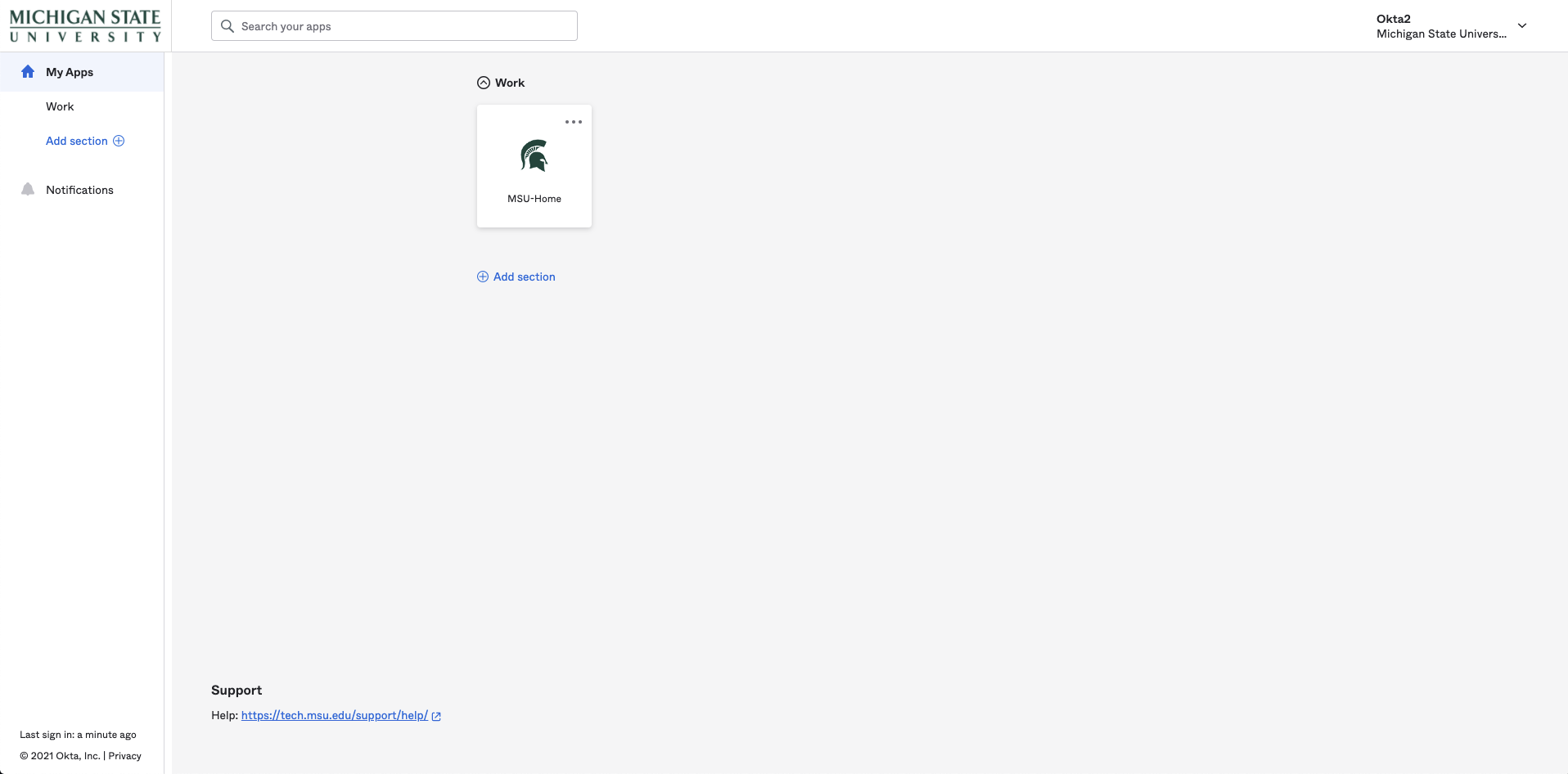
 The main screen at auth.msu.edu, showing a minimalist toolbar with a drop-down menu in the top right.

  1. From the user drop-down menu in the top right-hand corner, click Settings.
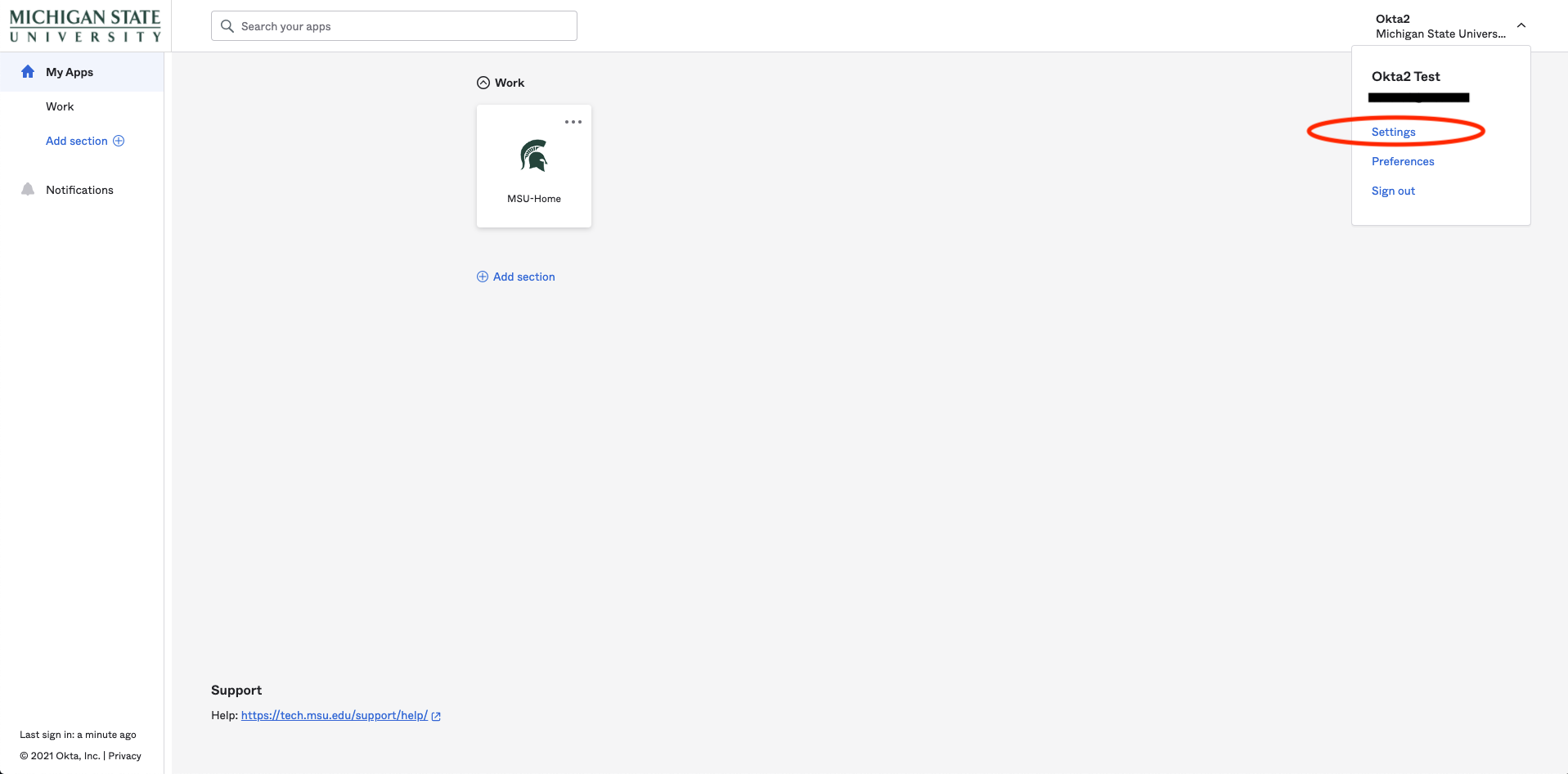
 Click Settings after drowp-down

  1. Click Edit Profile in the top-right corner of the screen, look for the Extra Verification section (picture below), and click Set up for your preferred verification method.
    While there are several ways you can receive an MFA authentication code, MSU IT recommends downloading and using the Okta Verify mobile app.
    • Okta Verify mobile app (recommended): Download the app on Google Play Store or Apple App Store
    • SMS authentication (text message)
    • Voice call authentication

NOTE: The Symantec option refers to the legacy two-factor authentication option that will soon be retired. New users should not set up Symantec and should choose any of the other options listed.
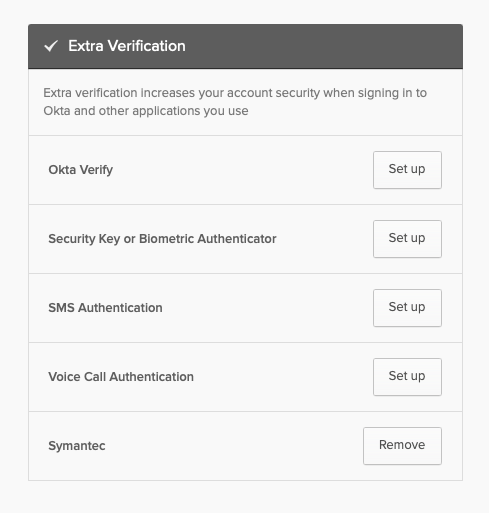
A screenshot of the "Extra Verification" menu, with the options listed and "Set Up" buttons appearing on the righthand side.
 

For SMS, voice call, or other authentication options, follow the on-screen instructions to complete the set-up. If you choose Okta Verify, the recommended method, please follow the instructions below:

  1. Select your device type, download the Okta Verify mobile app and click Next.
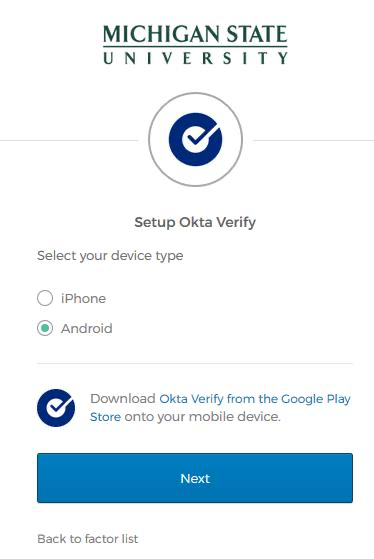
A screenshot showing the "Device Type" options that can be selected.

  1. You will see the screen below with a QR code. Launch the Okta Verify app on your mobile device, select Add an account, and follow the in-app instructions.
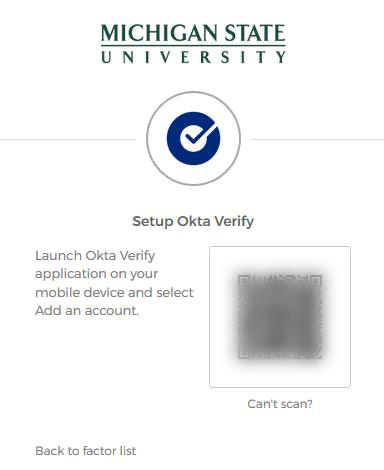
A screenshot showing the Okta Verify QR code.


  1. If you are unable to scan the QR code, click Can't scan?, select one of the options in the drop-down menu to receive an activation link (below), and follow the instructions you receive.
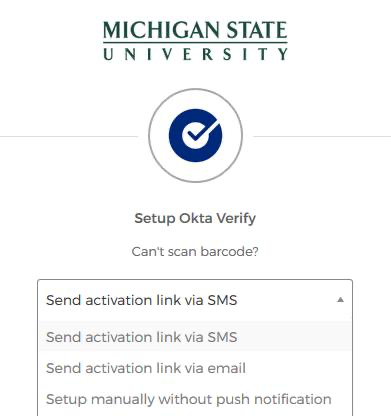
A screenshot showing the different activation link delivery choices.


  1. You have successfully completed your registration for MFA.
     

Issues with existing credential

If you have more than one MFA credential registered and at least one is still working, select the working credential from the drop-down menu at login. Then, follow steps 1 through 3 above to remove the obsolete credential from the Extra Verification box by clicking remove (do not remove the credential that is working). You may register a new credential by selecting Set up and following the instructions.

If you have only one credential registered for MFA and it is not working (you no longer have the device/phone number or have other potential issues), call the IT Service Desk (517-432-6200) for assistance.

If you have questions or concerns, please contact the MSU IT Service Desk at 517-432-6200 or chat.


Resources

  • A to Z Index
  • Find People
  • Maps
  • Email
  • Student Information System (SIS)
  • D2L
  • Libraries
  • Tech Support
  • MSU Misconduct Hotline
  • Social Media Directory
  • Events Calendar
  • For Media

Health and Safety

  • MSU Police and Public Safety
  • Olin Health Center
  • Counseling & Psychiatric Services (CAPS)
  • University Health and Wellbeing
  • MSU Health Care
  • Civil Rights and Title IX
  • Our Commitment
  • Center for Survivors
  • Security & Fire Safety Report
  • University Policy on Relationship Violence and Sexual Misconduct
  • Notice of Non-Discrimination, Anti-Harassment and Non-Retaliation
  • Health Care Non-Discrimination Notice

Support Services

  • Disability Resources
  • LiveOn Neighborhood Resources
  • Spartan One-Stop
  • University Health & Wellbeing

Working at MSU

  • Human Resources
  • EBS Login
  • Job Postings
  • Employee Assistance Program

Reports

  • CARES Act Funding
  • Student Achievement and Outcomes

Contact us

517-355-1855

Address

Michigan State University
426 Auditorium Road
East Lansing, MI 48824

Releases and Statements

Follow Us

  • Visit our Facebook page
  • Visit our page on X
  • Visit our LinkedIn page
  • Visit our YouTube page

If you're having accessibility issues, please let us know.

Know MoreTransparency
  • Contact Information|
  • Site Map|
  • Privacy Statement|
  • Site Accessibility|
  • Call MSU: (517) 355-1855|
  • Visit: msu.edu|
  • Notice of Nondiscrimination|

SPARTANS WILL|© Michigan State University|