As part of the university’s transition to more sustainable data storage practices, MSU will reduce overall Google data usage by reclaiming storage space utilized by inactive accounts. Beginning June 1, 2024, all Google accounts associated with individuals no longer affiliated with the university will be frozen. On June 1, 2025, all Google accounts associated with individuals no longer affiliated with the university will be deleted.
Even though these people depart from the university, they often leave behind data still owned by their MSU Google accounts. This means data regularly used by active affiliates (i.e., faculty, staff, and students) may need new ownership. Below you will find instructions on how to:
- Search for Files and Folders Owned by You
- Transfer Ownership to Another Individual at MSU
- Locate files/folders owned by specific users
- Gain ownership of data owned by others
- How to migrate data to OneDrive (Google Takeout)
- How to reduce your storage footprint in Google Drive
Are you leaving the university? It is critical that you work with your department/unit as part of offboarding to have ownership of university business-related files/folders you own transferred to another individual at MSU or, preferably, a Google shared drive owned by the unit before you leave. Please review the Institutional Data Policy here.
Search for Files and Folders Owned by You
You should search for all files and folders owned by you in My Drive and/or a specific folder in My Drive to then determine what should/shouldn’t be transferred to the new owner.
- Go to Google Drive.
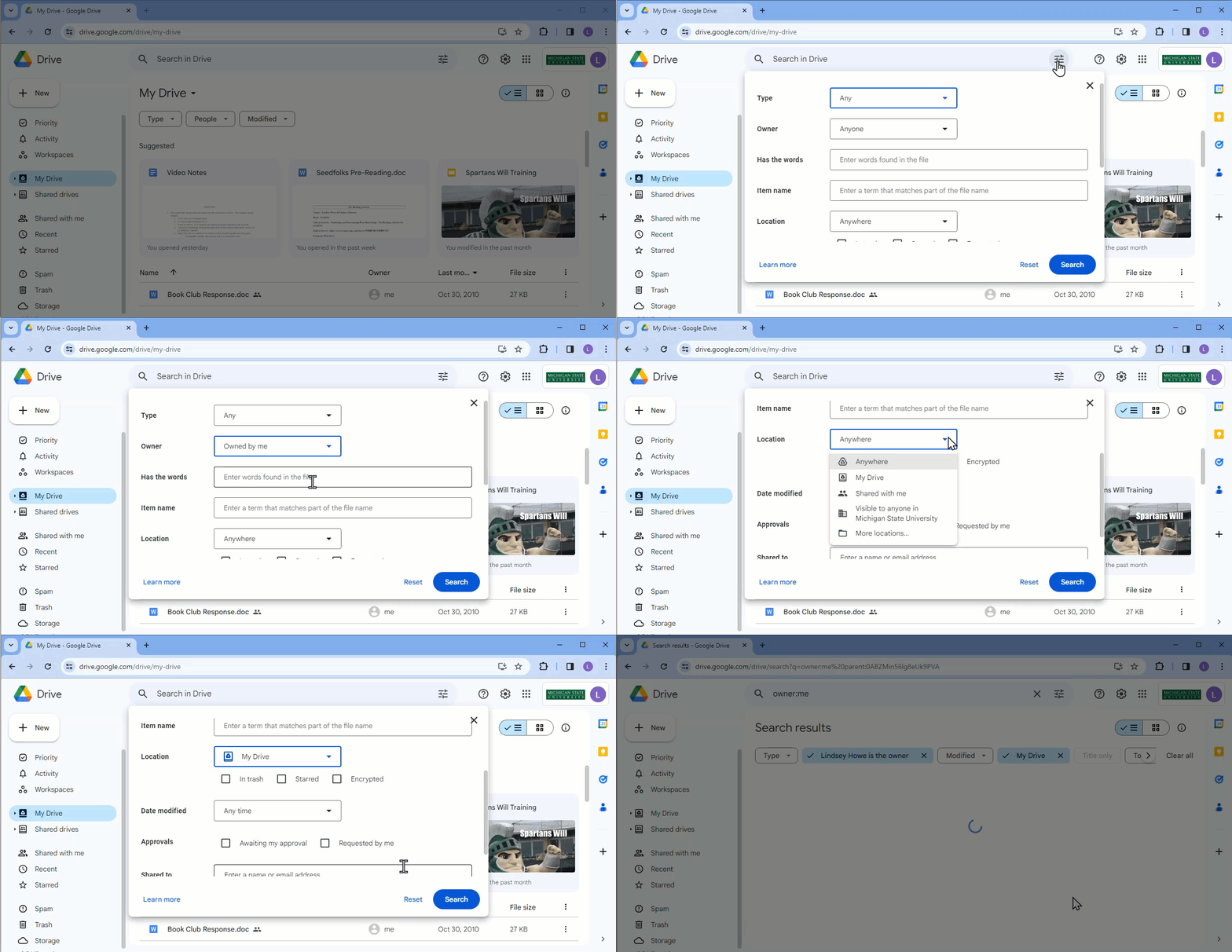
- Click the Search options icon to the right of the search field at the top of the page.
- Select Owned by me from the Owner drop-down menu.
- Select My Drive from the Location drop-down menu and click Select.
Tip: Consider narrowing your search even further to render specific results, which makes it easier for you to sift through the results to find the files/folders you would like to capture.
- Click Search.
Transfer Ownership to Another Individual at MSU
Note: You will need to change the ownership of files at the file level and not the folder level–changing the owner of a folder does not automatically change the ownership of each file/folder within that folder.
Transfer Share- Bulk
- Click and drag your cursor over the relevant files from your search results to select them. (If there are files you don’t want to be shared, hold the Ctrl (Windows) or Cmd (Mac) key and click on each file you don’t want to share to unselect them.)
Tip: Click the List view icon in the top right of the results to make it easier to view and select the files.
- Click the Share icon in the top left of the results.
- Enter the email address of the individual to which you’d like to transfer ownership in the Add people and groups field. Please review Institutional Data Policy if sharing outside of MSU.
- Uncheck the Notify people box to avoid sending the individual multiple email notifications and click Share.
Transfer Ownership- Bulk
Note: Once the individual has been shared on the files, you can now bulk transfer ownership to them.
Important: Google limits the amount of Google Drive files you can transfer ownership of in a 24-hour period (750GB).
- Click and drag your cursor over the relevant files from your search results to select them.
Note: If there are files you don’t want to be transferred, hold the Ctrl (Windows) or Cmd (Mac) key and click on each file you don’t want to transfer to unselect them.
Tip: Click the List view icon in the top right of the results to make it easier to view and select the files.
- Click the Share icon in the top left of the results.
- Click the drop-down menu beside the individual to which you want to transfer ownership and select Transfer ownership.
- Click Yes and then click Done.
Locate files/folders owned by specific users
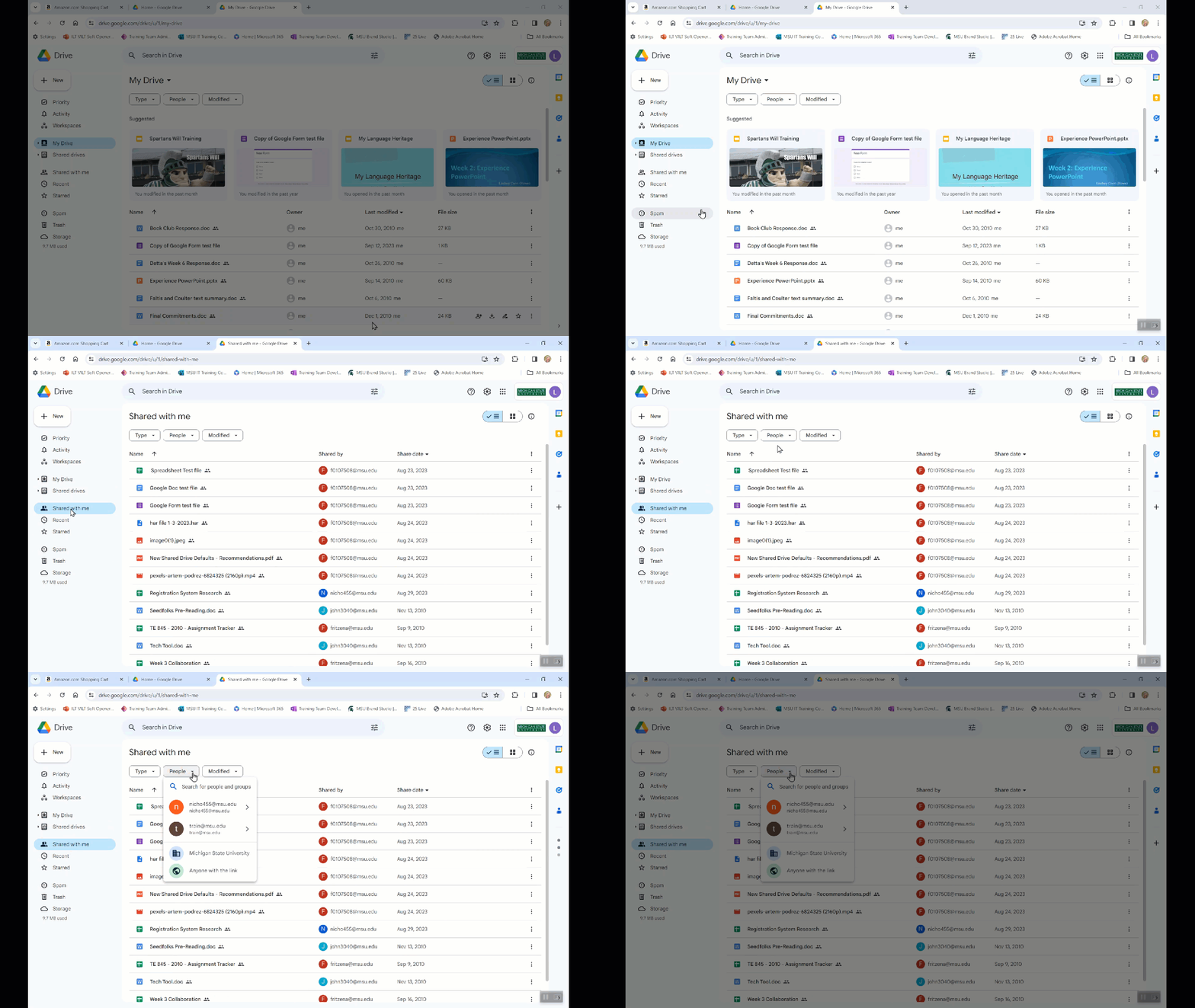
- Click Shared with me to locate files owned by other users.
- Click People to filter results by the owner.
- Search for the owner by typing their name or email address in the Search field.
Tip: Consider also filtering results by file type to pare down the results even further.
Gain ownership of data owned by others
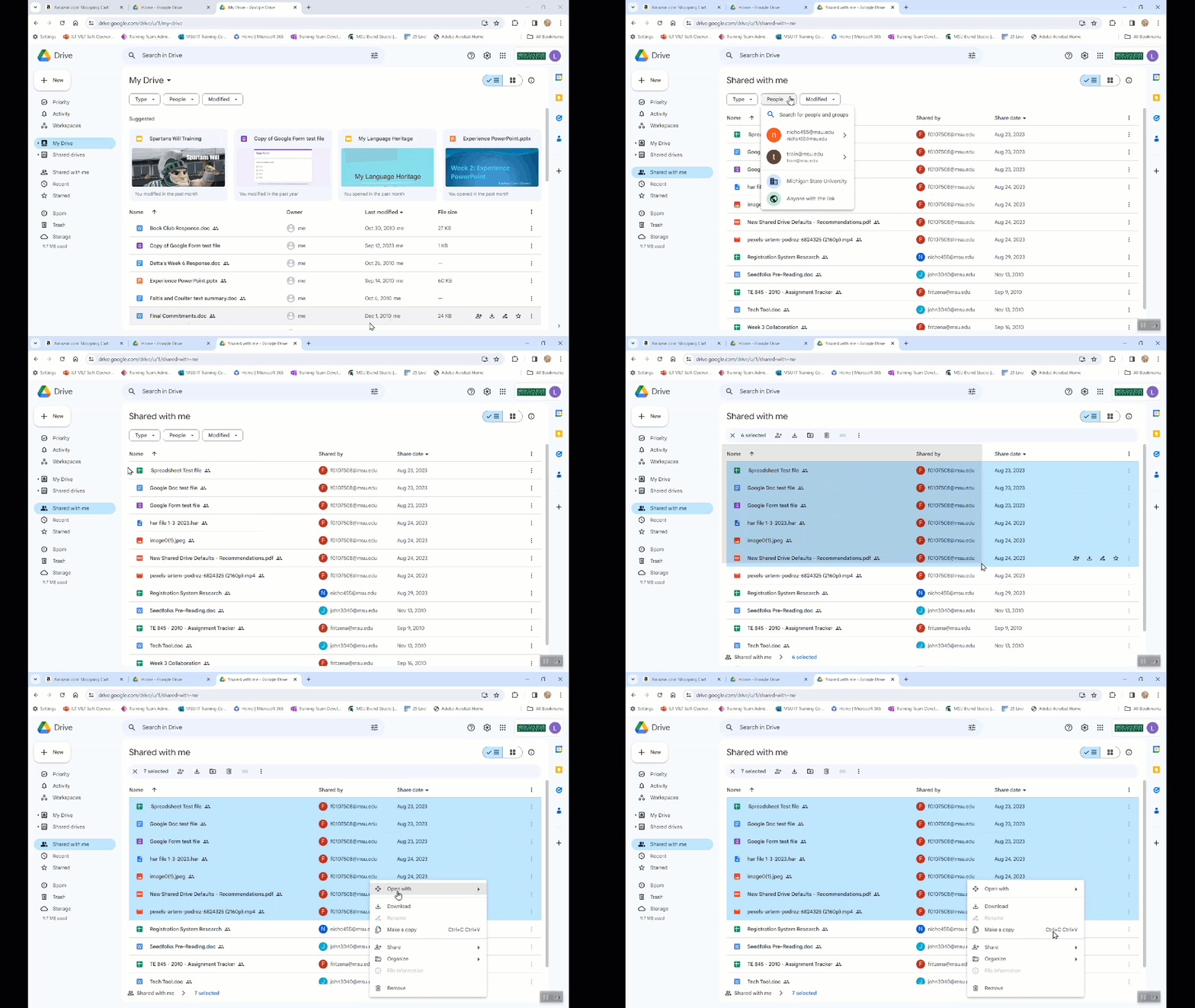
- One file– Click once on the file title. Multiple files– While holding the cursor button down, drag the cursor over the desired files to select the ones you would like.
- Right-click the selection and choose Download (to download to your local computer) or select Make a copy (to keep the copied files in Google).
Important: Making a copy of files in Google Drive does not automatically share this file(s) with the individuals/groups that had access to the original file(s). Also, if you make a copy of a file, the file name will include “Copy of” at the beginning of the file’s title. You can rename the file by right-clicking the file and selecting Rename from the menu that appears.
Bulk download of files
How to migrate data to OneDrive- Google Takeout
- Go to google.com.
- Create a new export by first selecting Deselect All.
Scroll down the page and select Drive.
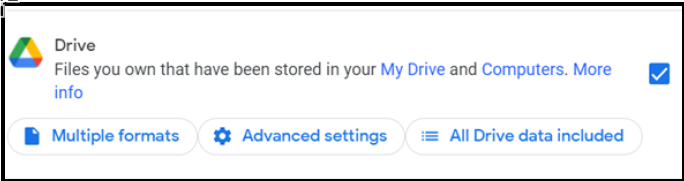
- Scroll to the bottom of the page and select Next.
- The next screen is to pick the destination for the files. From the drop-down menu, select Send download link via email.
- Select Create Export.
You should see an Export progress section on the next screen
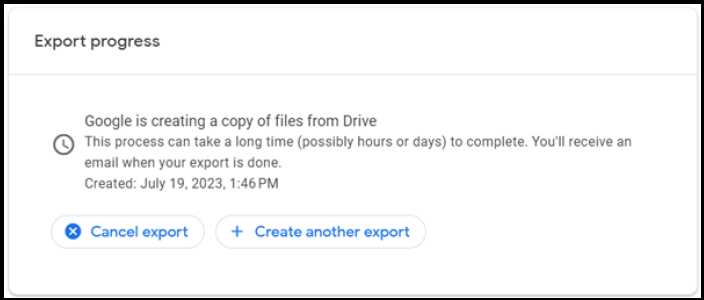
- When the export is complete, you should receive an email containing a link to download the zip file.
Note: You Documents that are native to Google (Docs, Sheets, etc.) will be converted to a format that is compatible with Microsoft Office products like Word and Excel. Your only other option for retrieving these types of files is to download them manually through the Google Docs website.
How to reduce your storage footprint in Google Drive
Important: This is an integral step in the Google storage clean-out process. Even if your storage capacity has not reached or exceeded 4GB, it’s important to clean-out unwanted/redundant/defunct files/folders to free-up space.
Remove Files from My Drive (Owned by You)
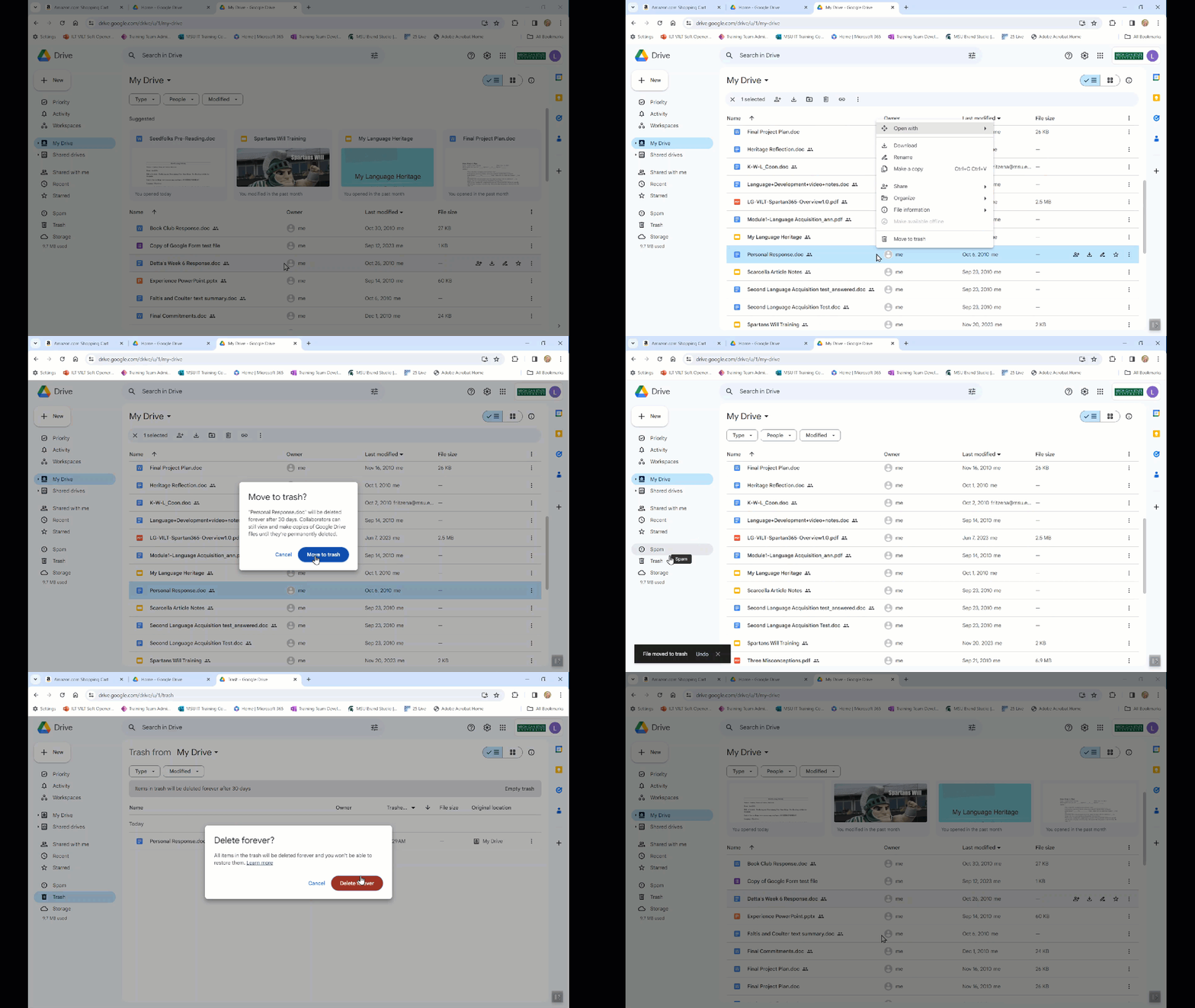
- Locate the file/files you would like to remove from My Drive.
- Click on the file name (or drag over multiple files to highlight more than one file).
- Right-click on the highlighted item(s) and choose Move to trash.
- Read the pop-up message and then click the Move to trash button to confirm this move.
Important: To permanently clear deleted files, you must empty your Google Drive trash.
- Click on Trash in the lefthand menu of Drive.
- Click Empty trash.
- Read the message box that appears on the screen and then click Delete forever to remove all deleted files from your Drive account.
Remove Files Owned by Other Users
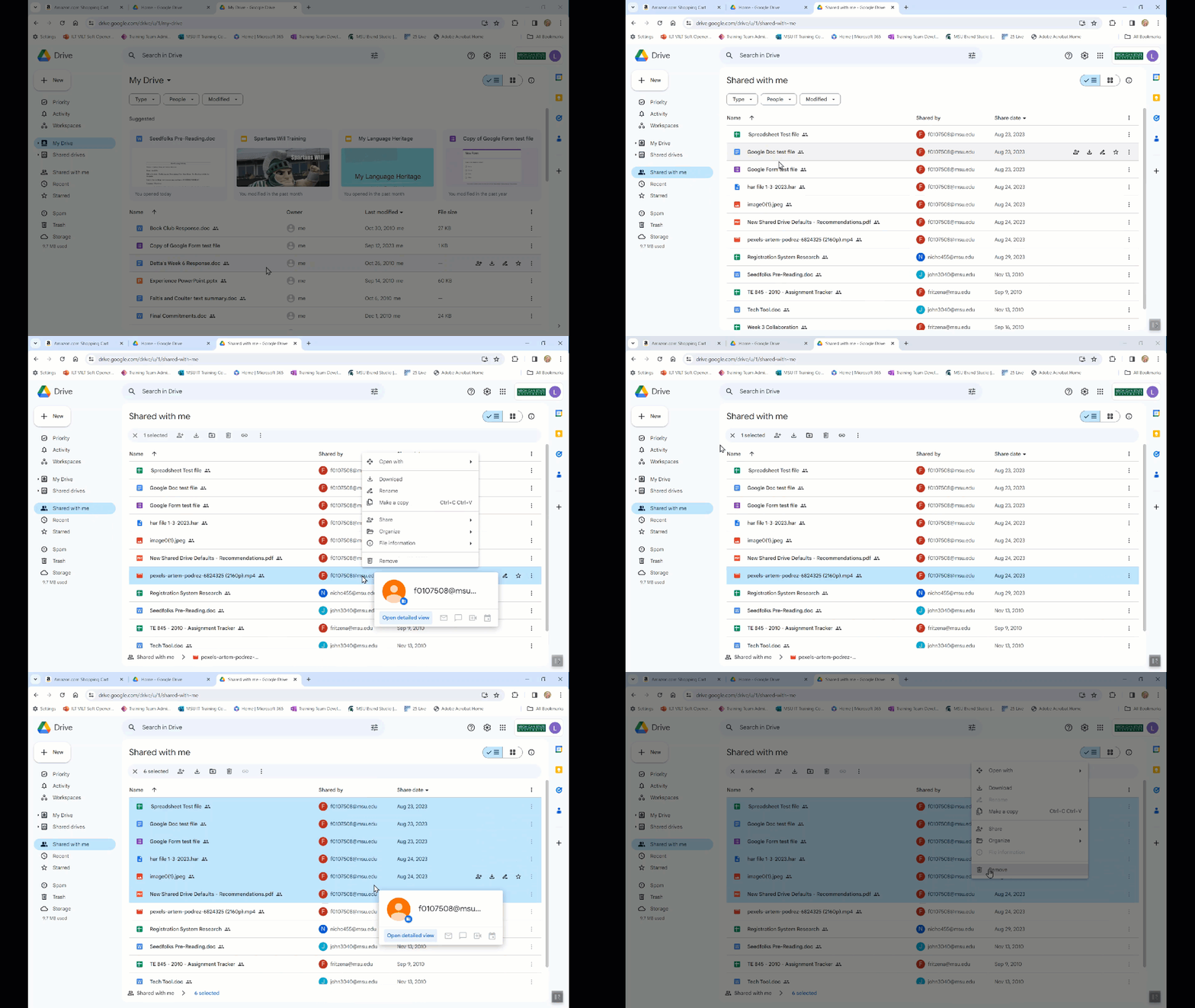
- Click on Shared with me in the lefthand menu of Drive.
- Locate the files, which are owned by another Drive user, you would like to remove from your Drive.
- Highlight the file and then right-click its title to make the menu appear.
- Choose Remove to remove the file(s) from your Drive.
Note: Removing files and folders from Shared with me does not remove those items from the owner’s Drive. Likewise, this does not remove the items from individuals’ Drive accounts in which the file(s) have been shared.
Google Storage Project
What do I do if I have questions or need help?
Please fill out this request form for additional support. Visit the MSU Knowledge Base for more information and instructions for accessing, managing, and transferring data associated with your Google account.
Managing your Google Storage
- GoogleApps – How to Check the Storage Quota on Your Google Drive
- GoogleApps – How To Check the Storage Quota on a Shared Google Drive
- GoogleApps – Shared Drive vs Shared With Me
- GoogleApps – How To Clear Out Space on Your Google Drive
- GoogleApps – How To Remove Files or Folders That Have Been Shared With You in Google Drive
- GoogleApps – How To Install the Google Drive App on Windows
MSU Storage Solutions
- Storage – Comparing Acceptable Storage Use for Microsoft OneDrive, Microsoft SharePoint, Elastic Storage, and Kaltura MediaSpace
- Storage – General Information About Available Storage Types and How They Should be Used
- MSU Data Storage Finder (login required)
Transferring Data
- Spartan 365 – How To Configure the OneDrive Client on a Windows Machine for MSU
- GoogleApps – How To Move Files From Google Drive with Google Takeout
- GoogleApps – How To Sync Files From Google Drive to OneDrive
- Elastice Storage – How To Connect to Elastic Storage on a Windows Machine
- GoogleApps – How To Copy Video Files from Google Drive to MediaSpace